01 PROJECT CONTEXT
What do we do at Aidash

Bringing the field app up to date
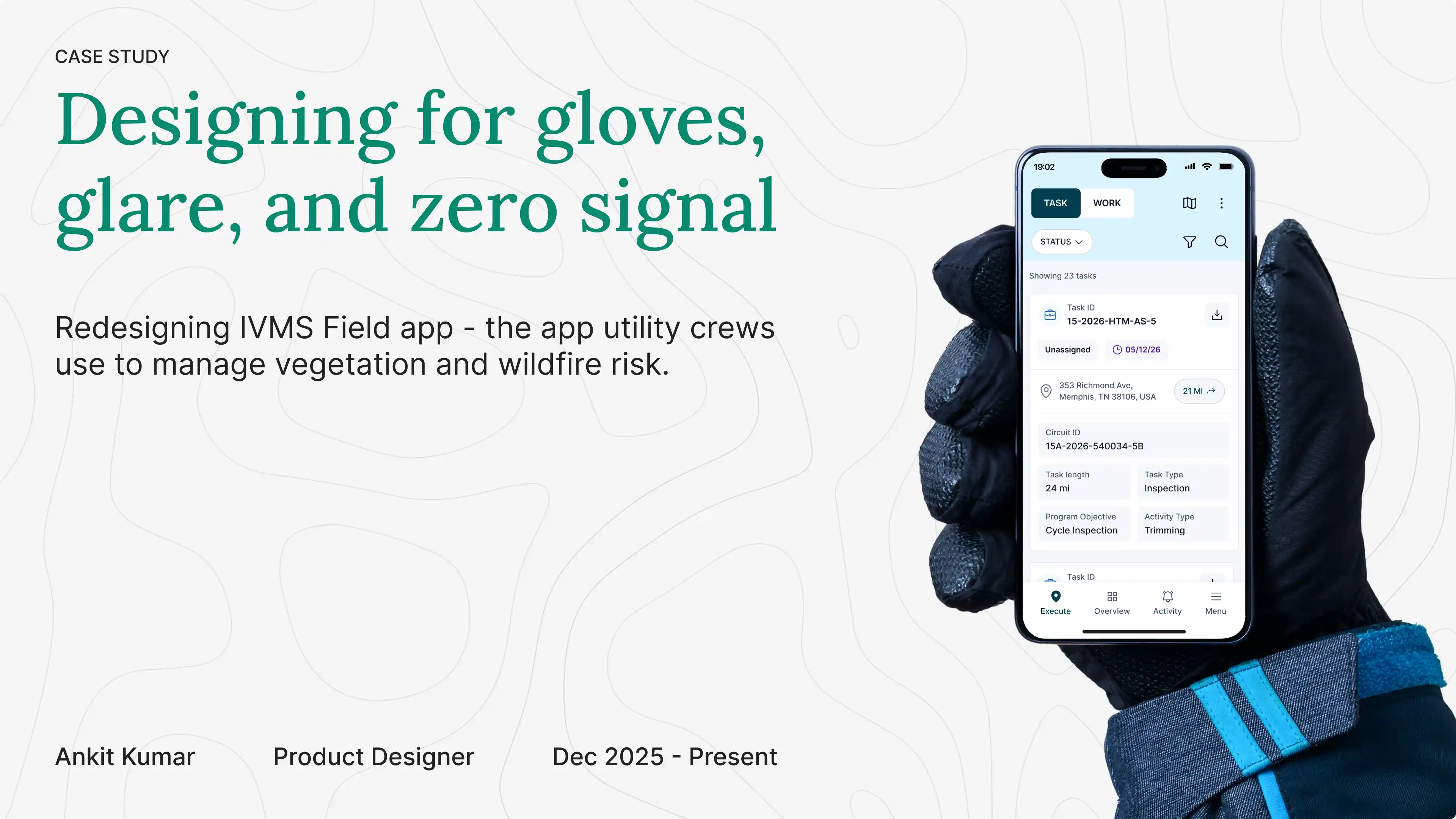
AiDash recently revamped its web platform. We have an accompanying app that field worker use to track and log work items.
I led the redesign of the mobile app, clearing 80+ usability tickets accumulated over two years and adding the new features needed to match the new platform.


Plan the work. Record it. Mark it done.

02 DESIGNING FOR THE FIELD

Voice input: What if filling a form didn't need a keyboard?
Users often have to fill details of multiple works they are doing/ observation they are making while wearing a glove, in harsh outdoor environments.To aid them in the process we wanted to test voice input as a method for form filling.
This was a high requested feature and most of our competitors have a voice filling option.

Rewriting the brief and covering all bases
Most of our competitors had voice fast fill feature. Instead of taking inspiration from them, we defined our own problems by considering every use case. We wanted to solve for accessibility not speed.

Speak an answer. Move to the next field. Say Commands to control UI.
Interactive
But the touch still needed to work with gloves and in bright light
Crews reported accidental taps and targets that were hard to hit while wearing gloves. I increased touch targets across the app, using 52px for primary actions and a 44px minimum for smaller controls.

Bringing the same patterns across the app
Interactive
More map when you need context. More details when you need to act.
Interactive
02 DESIGNING FOR INTENT

We made every tap easier. Then we asked how to need fewer of them.
Accessibility fixed the taps. This chapter is about the decisions between them, how crews choose what to work on, and how the app learned to keep up.

Talking with the Crew
We learned how crews choose work in the field: by location, urgency, equipment, and what is already in motion.
Finding patterns
Different routines revealed the same friction: the app showed every task, but not what mattered right now.
Defining solutions
The insights shaped three connected solutions: accelerators for choosing, bulk actions for planning, and Overview for resuming.
How do crews actually decide what to work on?
Every crew described their morning differently, but they were all doing the same thing: picking work by one or two attributes that mattered to them that day. A few clear patterns emerged.


Crews knew what mattered. The app made it hard to get there.
These were practical ways to choose the right work. But using them in the app meant extra steps, long lists, and very little personal context.

1. Finding the right work took too many steps
To narrow the list by priority, circuit, or work type, crews had to open the filters, choose a value, apply it, and return. Combining a few details meant repeating the process several times.

2. The list was difficult to understand at a glance
With hundreds of similar-looking items, crews could see individual jobs but not the bigger picture. What was overdue, where work was building up, or what needed attention first.

3. It was hard to tell what was mine
Tasks were assigned to the whole crew, so many items showed the same “In Progress” status. It was difficult to tell which item someone had worked on or where they should continue.
Solution 1: Accelerators
What if the list itself was the filter?
Every field on every card is also a handle. Press and hold a circuit ID, a due date, a task type; and its filters and actions appear right there.
Solution 2: Bulk Actions
Planning moved from the office into the field
Admins and supervisor planned and assigned work in the web app before the day began. But when conditions changed in the field, updating that plan was slow and often had to wait until later.

Planning ahead
Work was reviewed, prioritized, and assigned from the office, often a day before crews reached the site.
Plans changing
Crew availability, blocked access, or urgent work could quickly make the original plan outdated.
Updating in the field
Bulk actions allowed supervisors to select several work items and assign, reschedule, or update them together.

Solution 3: Overview tab
A clearer starting point for each crew member
Tasks were assigned at the crew level, so the task list did not clearly show what each person had worked on. The Overview screen brought personal activity and key work information into one place.

03 DEFINING RULES FOR COLORS

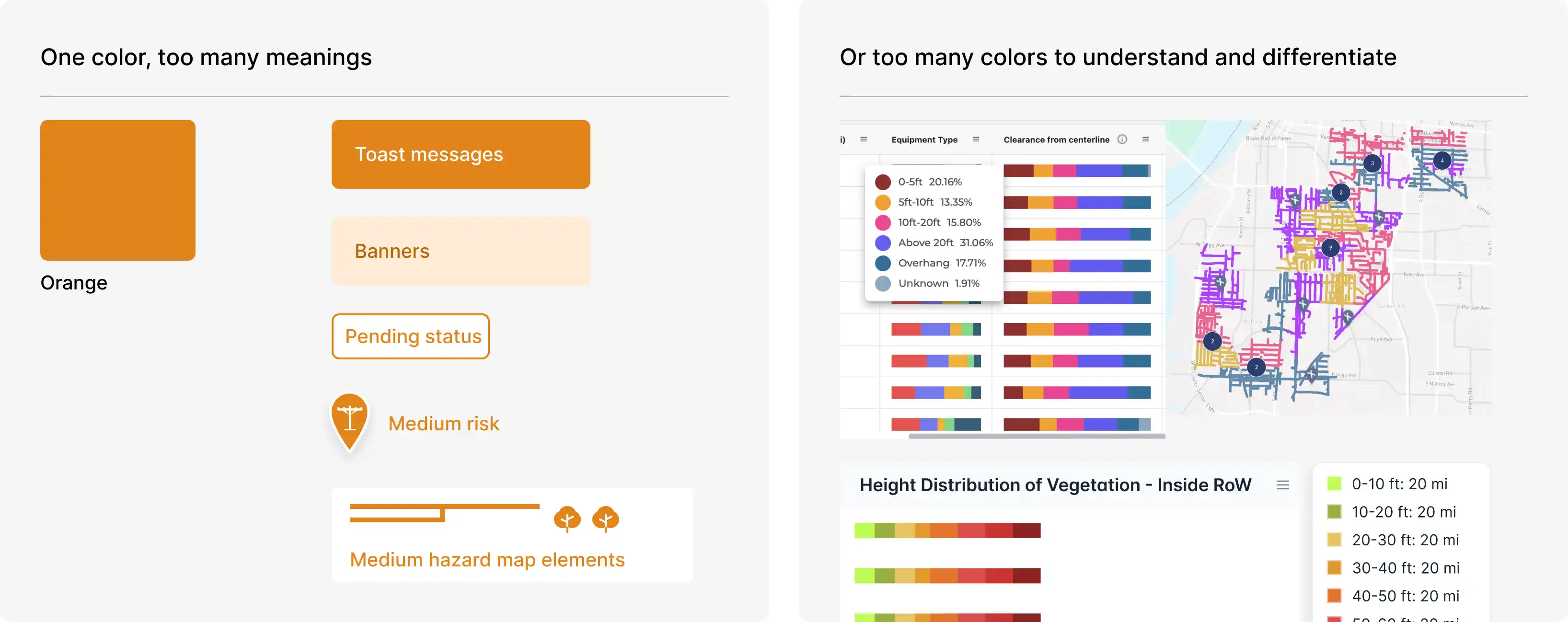
The same few colors were doing too many jobs.
Across AiDash's vegetation, asset, and climate products, dashboards, maps, and tables had hundreds of data points to communicate. A small set of primary colors had to distinguish categories, show severity, and draw attention to what mattered.
Giving each part of spectrum a job
Most of our competitors had voice fast fill feature. Instead of taking inspiration from them, we defined our own problems by considering every use case. We wanted to solve for accessibility not speed.

Adding checks and balances to each palette
Most of our competitors had voice fast fill feature. Instead of taking inspiration from them, we defined our own problems by considering every use case. We wanted to solve for accessibility not speed.
An animation to show my process
Interactive
230 colors sounds a lot but not if you have this tool
Repeating this process across palettes meant a lot of manual tuning. I built Curve Palette with Claude to generate ramps from a curve, compare contrast, and preview color blindness in the same workspace.
